The main scene creator file contains one of each device/screen but the pre-made scenes have been made to showcase multiple devices/screens with multiple designs, so we recommend using the pre-made scenes if you want to showcase multiple designs on multiple devices/screens. If you did however want to create your own custom layouts of devices/screens and you want to have them show different designs then please follow these steps:
- Duplicate the device/screen you want to copy by Right Click/ CTRL + click on the main folder group and select ‘Duplicate Group’.
- Next you will need to duplicate the ‘ADD DESIGN HERE’ layer highlighted red by Right Click/ CTRL + click on the layer and selecting ‘New Smart Object via Copy’. This will make this a new smart object so you can add a different design. You will need to delete the old smart object layer.
Note: If you duplicate a Phone then you will need to make sure the new smart object via copy layer is clipped to the layer underneath. To do this right click on the new smart object and select ‘create clipping mask’. This is so the design takes on the shape of the rounded corners of the phone. See Below.
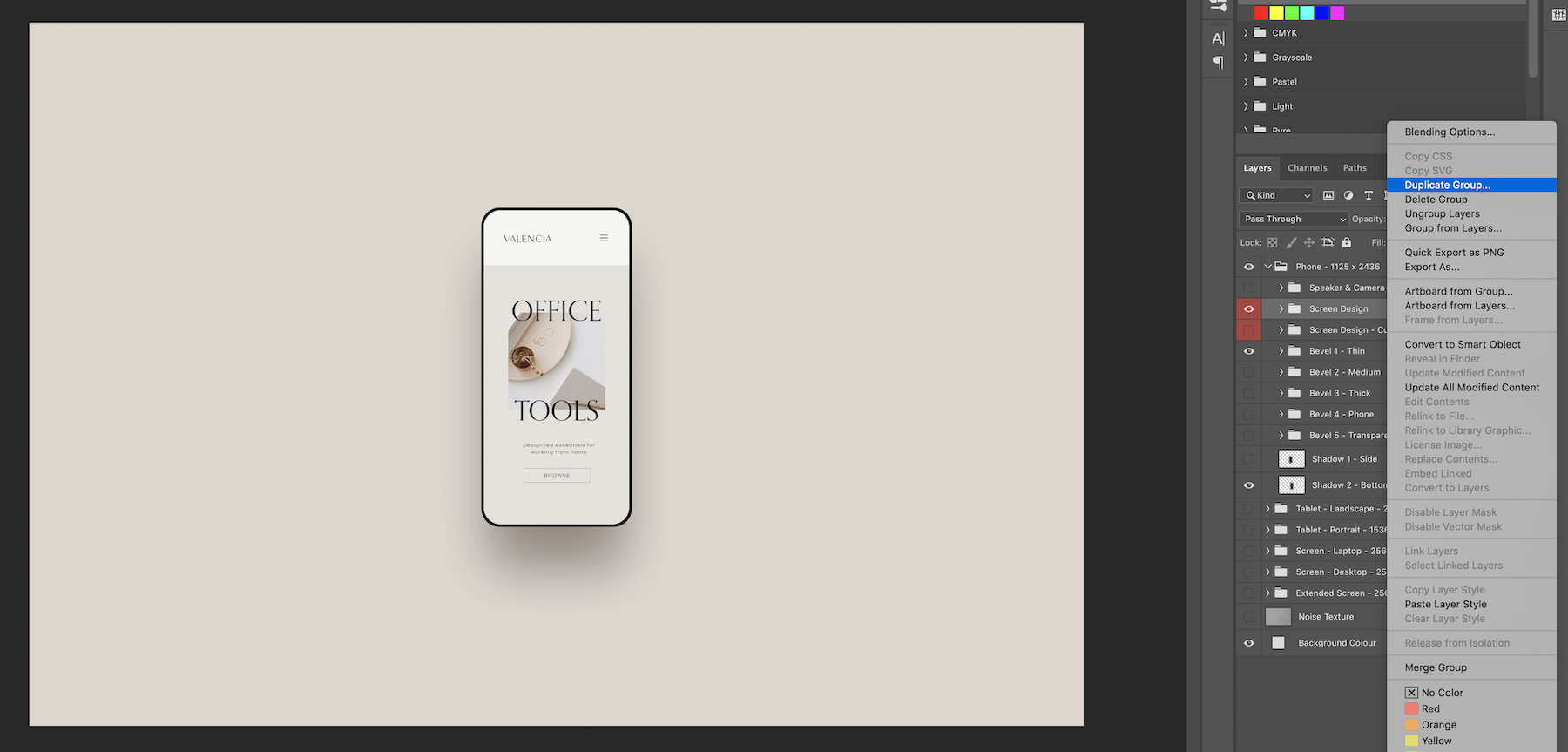
Duplicate the group ‘Screen Design’ or ‘Screen Design - Cut Out’.
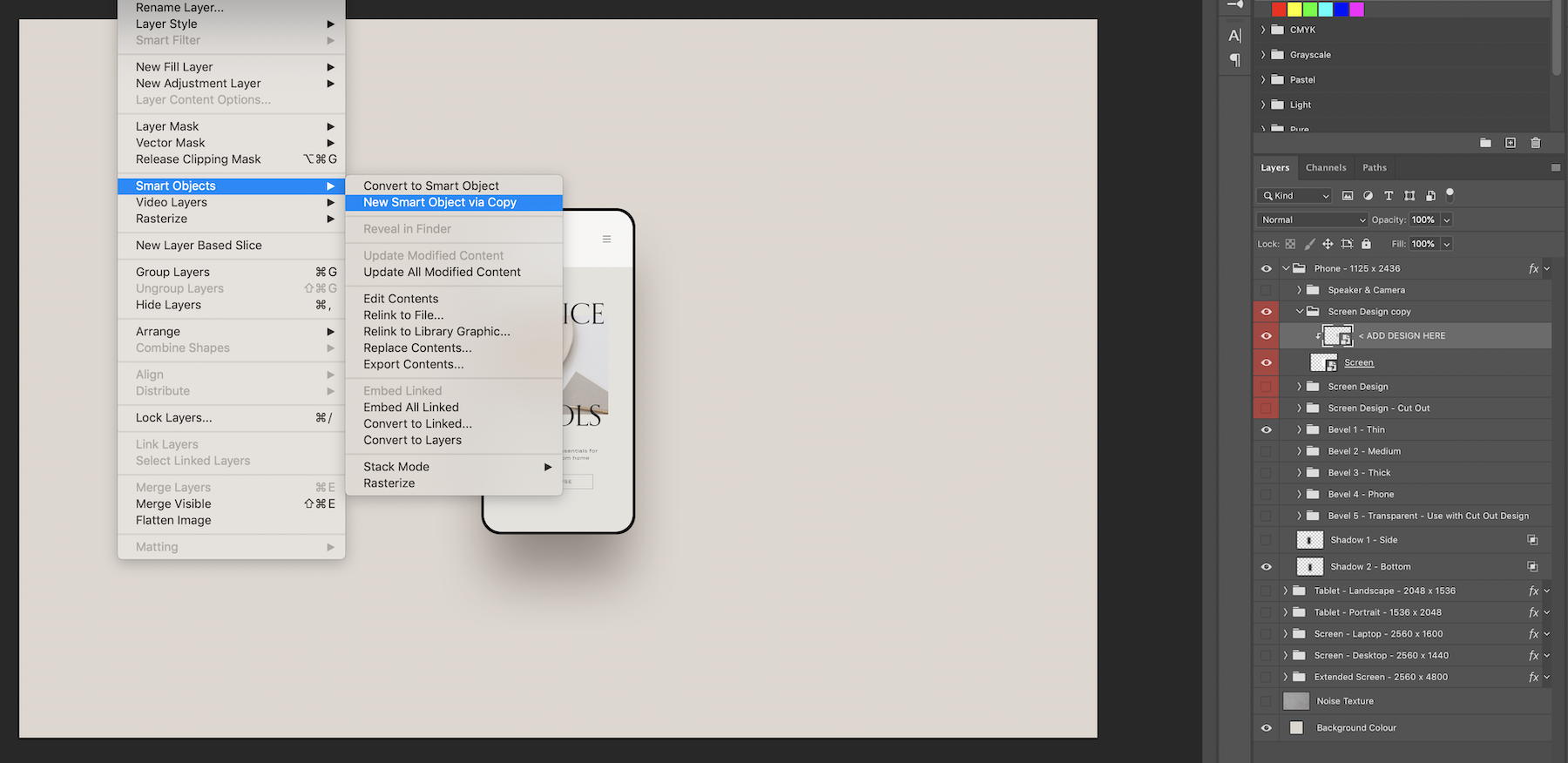
Expand the new duplicated group select the ‘ADD DESIGN HERE’ smart object and go Layer > Smart Objects > New Smart Objet via Copy. Delete the old one.
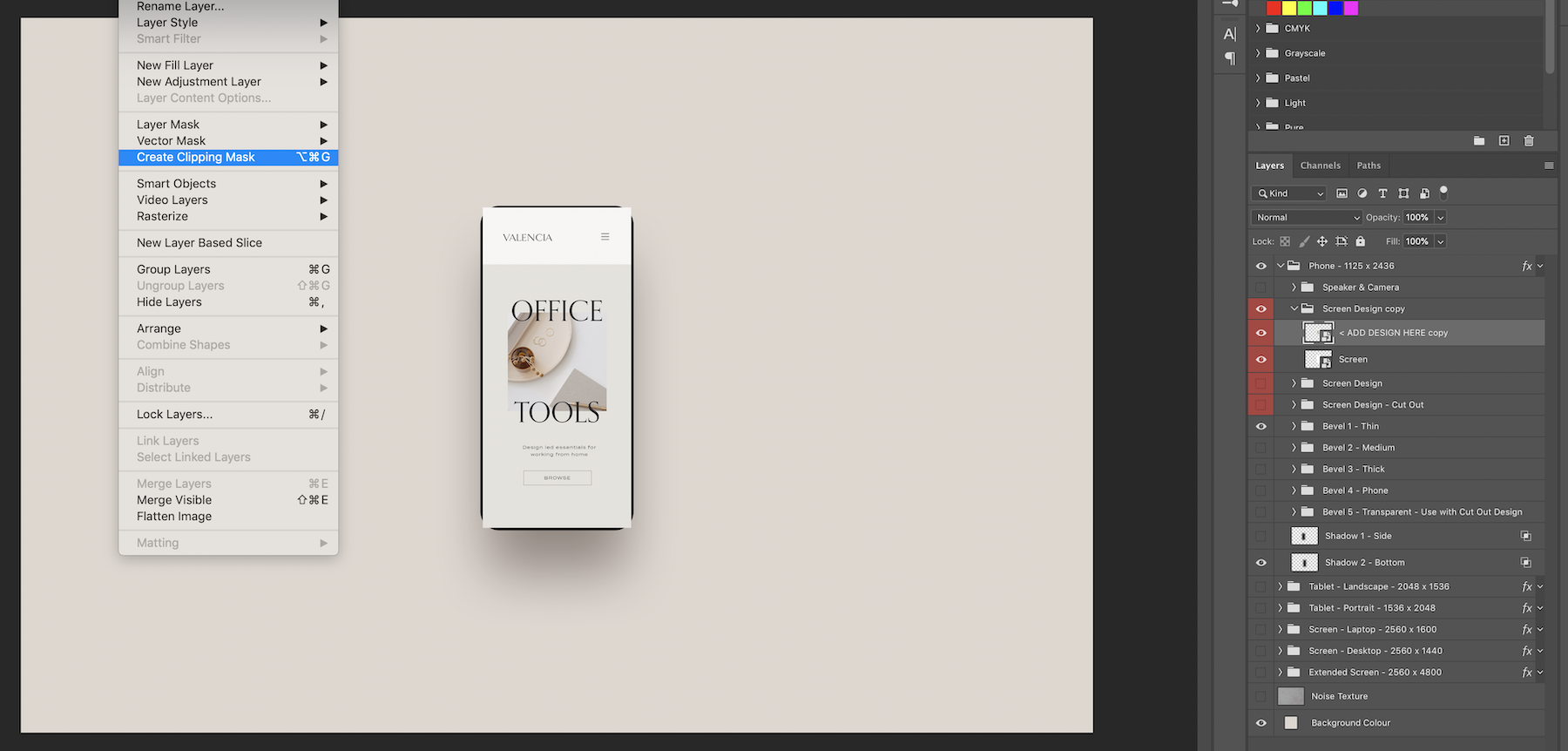
For the Phones, the new smart object will need to be ‘clipped’ to the layer below. To do this go > Layer > Create Clipping Mask.
Comments
0 comments
Article is closed for comments.